How to transfer domain name away from godaddy to new host? Welcome to thehostreviews.com—your premier authoritative destination for domain name migration tutorials, registrar transition guides, and web hosting architecture reviews spanning major tech hubs from New York and San Francisco to Texas, California, and Washington.
Introduction: Why Leave GoDaddy?
GoDaddy is indisputably one of the most recognizable names in the domain registration and web hosting ecosystem. For millions of digital entrepreneurs, small business owners, and web developers, GoDaddy served as the starting point for registering their very first digital asset.
However, as websites grow and business requirements evolve, many domain owners eventually decide to transfer their domains away from GoDaddy. The primary drivers behind this mass exodus usually include:
- Aggressive Renewal Price Hikes: GoDaddy is infamous for offering cheap introductory rates for the first year, only to spike renewal fees significantly higher than industry averages.
- Aggressive Upselling: Navigating the GoDaddy control panel often means dodging endless pop-ups trying to sell privacy protection, bundled business email, or overpriced SSL certificates that competitors include for free.
- Better Integration and Pricing Elsewhere: Modern alternatives (such as Cloudflare Registrar, Namecheap, Porkbun, or Google/Squarespace integrations) offer transparent wholesale pricing, free WHOIS privacy protection, and cleaner management dashboards.
Transferring a domain away from GoDaddy can seem intimidating if you have never done it before. Domain registrars design their interfaces to retain customers, meaning the unlock and transfer-out buttons are often buried behind multiple menus.
This comprehensive, step-by-step masterclass will guide you through the exact technical workflow required to unlock your domain, retrieve your authorization code, settle ICANN registry locks, and complete a smooth transition to your new host or registrar without a single second of unexpected website downtime.
Part 1: The Golden Rules of Domain Transfers (Before You Begin)
Before logging into your GoDaddy account, you must understand ICANN (Internet Corporation for Assigned Namescripts and Numbers) regulations governing domain transfers to prevent common failures:
- The 60-Day Lock Rule: Under ICANN policy, if you registered a brand-new domain name within the last 60 days, or if you recently transferred that domain from another registrar, you cannot transfer it. You must wait until the 60-day window expires.
- Contact Info Verification: Ensure that the administrative email address listed in your GoDaddy domain contact profile is active and accessible. Transfer authorization emails will be sent directly to this address.
- Downtime Prevention Strategy: A domain transfer moves registrar management, not hosting. However, if you change your nameservers during the transfer process, your website could go offline if your new host is not yet fully configured. The golden rule of zero-downtime transfers is: Keep your DNS pointers active until the transfer is 100% complete.
Part 2: Step-by-Step Guide—Transferring Your Domain Away from GoDaddy
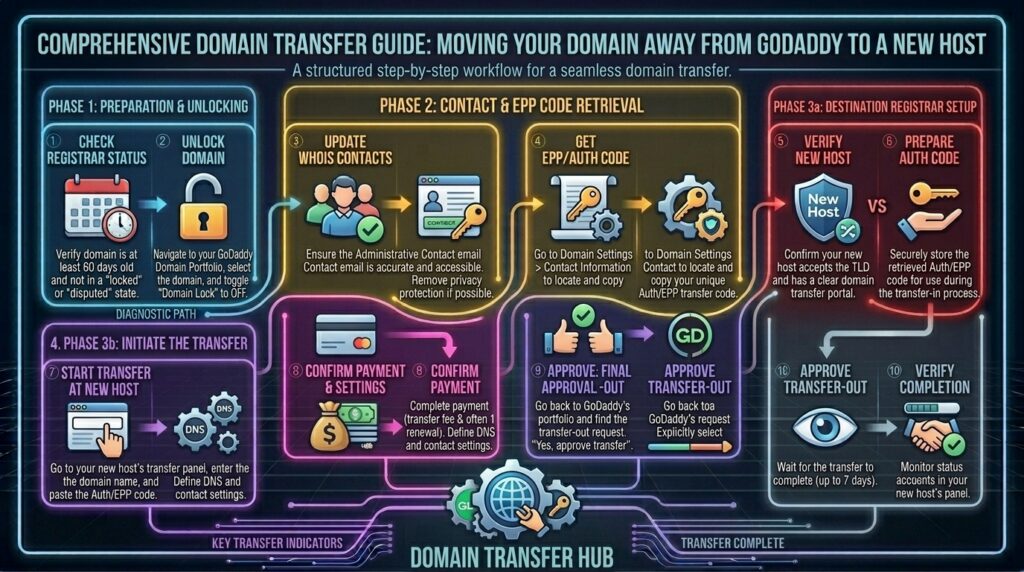
To successfully move your domain out of GoDaddy, you must execute a precise 5-step sequence. Follow these instructions carefully.
Step 1: Disable Domain Privacy (Contact Information Disclosure)
While privacy protection (WHOIS privacy) is essential to block spam, it can sometimes interfere with registrar transfer verifications because it hides your admin email address from the public registry.
- Log into your GoDaddy Account.
- Click on your profile name in the top right corner and select My Products.
- Locate your domain name under the Domains dropdown list and click on it to open the Domain Settings page.
- Scroll down to the Contact Information section. If Privacy Protection is enabled, temporarily toggle it Off or select Make Contact Info Public.
- Save changes. (Note: You can safely re-enable privacy protection at your new registrar once the transfer is finalized).
Step 2: Unlock the Domain (Registrar Lock Removal)
GoDaddy automatically locks all registered domains to prevent unauthorized or accidental transfers. You must manually remove this lock before another registrar can pull the domain.
- On the same Domain Settings page in your GoDaddy account, scroll down to the Additional Settings section.
- Look for the setting labeled Domain Lock.
- If the toggle is set to On, switch it to Off.
- A confirmation prompt will appear confirming that your domain is now unlocked. (Note: It may take anywhere from 15 minutes to 2 hours for the registry to officially register the unlocked status).
Step 3: Retrieve Your Authorization Code (EPP / Auth Code)
Every domain transfer requires a secret cryptographic password known as an Authorization Code or EPP Code to prove you are the legal owner.
- Still inside your GoDaddy Domain Settings page, look directly below or near the Domain Lock toggle for the option reading Transfer domain away from GoDaddy (or Get authorization code).
- Click that link.
- GoDaddy will make a final attempt to retain you, offering discounts or warning you about potential downtime. Ignore these prompts and click Continue with transfer.
- GoDaddy will display your unique Auth Code on screen and simultaneously email a copy to your administrative email address.
- Click Copy to Clipboard and paste this code securely into a text document. You will need to provide this code to your new registrar.
Step 4: Initiate the Transfer at Your New Registrar
Now that GoDaddy is prepared to release the domain, you can initiate the pull from your new hosting provider or registrar (such as Namecheap, Cloudflare, or Porkbun):
- Log into your new registrar’s dashboard and navigate to their Domain Transfer page.
- Enter your domain name (
thehostreviews.com). - Paste the Authorization Code you copied from GoDaddy when prompted.
- Pay for the transfer fee. (Note: ICANN mandates that a domain transfer adds 1 full year to your existing domain registration expiration date, meaning you never lose time when transferring).
Step 5: Approve the Transfer (Speeding Up the 5-Day Wait)
By default, ICANN allows domain transfers up to 5 days to complete automatically as administrative safeguards. However, you can bypass this waiting period and complete the transfer in under an hour:
- Return to your GoDaddy account and navigate to Domains > Requests > Pending Transfers (or check your email for the official transfer-out confirmation message).
- Locate the pending transfer request initiated by your new registrar.
- Click Approve Transfer.
- Confirm your approval. Once approved on GoDaddy’s end, the registry releases the domain, and it will appear active in your new registrar’s dashboard within 15 to 60 minutes.
Part 3: What to Do If Your Domain Transfer Gets Stuck
Occasionally, domain transfers encounter roadblocks or rejections. Here is how to troubleshoot the most common failure points:
- Registry Restrictions (Pending Delete / Redemption Period): If your domain was expired at GoDaddy and entered the redemption grace period, you cannot transfer it until you renew it first, clear any outstanding balance, and wait 45 days past expiration in certain TLD scenarios.
- Transfer Rejection by GoDaddy: If GoDaddy rejects the transfer (sometimes occurring if administrative contact emails do not match or if the domain is locked), check your email for a rejection notice, verify that privacy is disabled, ensure the domain lock is off, and restart the transfer request at your new registrar.
- Name Server Continuity: To prevent your website from going offline during the transfer, do not change your nameservers until the domain transfer status reads “Completed” at your new registrar. Once the transfer is complete, you can safely update your nameservers or manage DNS records on your new platform.
Part 4: Frequently Asked Questions (FAQ)
1. Will my website go down when I transfer my domain away from GoDaddy?
No. Domain transfers change registrar ownership, not web hosting. If you keep your existing nameservers or DNS records active during the transfer, your website will experience zero downtime.
2. Can I transfer a domain if I registered it less than 60 days ago?
No. ICANN regulations strictly prohibit transferring any domain name to a new registrar within 60 days of initial registration or a previous transfer.
3. Will I lose the remaining months left on my domain registration?
No! Under ICANN rules, transferring a domain automatically adds 1 full year to your current expiration date, meaning you never lose the time you already paid for.
4. What is a domain authorization code (EPP code)?
An EPP code is a secure cryptographic password generated by your current registrar (GoDaddy) that proves you are the legal owner authorized to move the domain.
5. Why is my GoDaddy domain transfer button grayed out?
This usually happens because the domain is locked (Domain Lock is set to “On”) or because the domain was registered or transferred within the last 60 days.
6. Do I need to turn off WHOIS privacy protection before transferring?
Yes. Turning off privacy protection temporarily ensures that your administrative email address is visible to the registry so you can receive and verify transfer confirmation messages.
7. How long does a domain transfer away from GoDaddy take?
While ICANN allows up to 5 days for automated processing, you can complete the transfer in less than an hour by manually approving the transfer out inside your GoDaddy pending requests panel.
8. Will transferring my domain cancel my GoDaddy web hosting?
No. Domain registration and web hosting are billed and managed as separate services. If you only transfer your domain, your hosting account at GoDaddy will remain active until you manually cancel it.
9. What should I do if GoDaddy rejects my domain transfer?
Check your email for rejection details, confirm that the domain lock is disabled, make sure WHOIS privacy is off, and re-initiate the transfer request with your new registrar.
10. Who should I contact if my domain transfer is stuck for more than 48 hours?
If manual approval was completed and 48 hours have passed without resolution, reach out to both GoDaddy support and your new registrar’s support team to check registry transmission status.
Conclusion
Transferring your domain name away from GoDaddy to a new registrar or host is a straightforward process once you understand the precise unlocking, authorization, and approval workflow. By disabling privacy protection, unlocking your domain, securing your EPP auth code, and manually approving the transfer out, you can successfully reclaim full control of your digital asset and transition to a platform that better serves your long-term business goals.