How to Change PHP Version Per Directory in cPanel Hosting: The Ultimate MultiPHP Engineering Guide
Welcome to thehostreviews.com—your premier authoritative destination for cPanel server administration, WordPress hosting optimization, and multi-version PHP environment tutorials spanning major tech hubs from New York and San Francisco to Texas, California, and Washington.
Introduction: The Modern Hosting Dilemma — One Server, Multiple PHP Requirements
If you manage multiple websites, client accounts, or staging environments on a single cPanel hosting server, you have likely encountered a classic web development bottleneck: PHP Version Incompatibility.
Imagine you are managing two distinct web applications within subdirectories under a single cPanel account:
- Site A (
[thehostreviews.com/blog/](https://thehostreviews.com/blog/)): A modern, high-performance WordPress platform running PHP 8.3, leveraging the latest speed enhancements and security patches. - Site B (
[thehostreviews.com/legacy/](https://thehostreviews.com/legacy/)): An older client portal or legacy custom application that relies on an older codebase requiring PHP 7.4 to prevent fatal syntax errors.
Historically, web servers forced a single, global PHP version across an entire hosting account. If you upgraded the server PHP version to support your new WordPress blog, your legacy client portal would instantly crash with a white screen of death. If you downgraded, your modern application would lose access to modern PHP features.
Enter Per-Directory PHP Version Control via cPanel. Modern enterprise-grade web hosting environments running CloudLinux or MultiPHP selector tools allow administrators and developers to assign different PHP versions to specific directories or subdomains within the exact same cPanel account.
This comprehensive, expert-level guide will walk you through the architecture of PHP handlers, step-by-step cPanel configuration tutorials, .htaccess mapping strategies, and troubleshooting techniques for managing multi-PHP environments.
Part 1: Understanding How cPanel Manages Multiple PHP Versions
Before making configuration changes, it is essential to understand how cPanel handles PHP execution behind the scenes.
1. The MultiPHP Manager vs. MultiPHP INI Editor
- MultiPHP Manager: This cPanel interface controls the PHP version assigned at the domain or subdomain level. It dictates which PHP interpreter processes the request (e.g., PHP 7.4, 8.1, 8.2, or 8.3).
- MultiPHP INI Editor: This interface controls the configuration directives (such as
memory_limit,upload_max_filesize, andmax_execution_time) for whichever PHP version is currently selected.
2. The Role of Handlers and CloudLinux
Most professional hosting providers utilize CloudLinux alongside cPanel. CloudLinux introduces LVE (Lightweight Virtual Environment) and CageFS, allowing individual hosting accounts to run isolated PHP versions and resource limits. When you change a PHP version for a directory, cPanel modifies the Apache handler mapping (typically using AddHandler or FilesMatch directives) inside your .htaccess file.
Part 2: Step-by-Step Guide — Changing PHP Version Per Directory
While cPanel’s standard GUI allows you to change PHP versions per domain or subdomain, changing PHP versions on a per-directory (subdirectory) basis requires custom configuration via .htaccess mapping or MultiPHP Selector overrides.
Here are the step-by-step methods to achieve precise per-directory control.
Method 1: Using the cPanel MultiPHP Manager (Domain & Subdomain Level)
If your legacy application or secondary script resides on a dedicated subdomain (e.g., legacy.thehostreviews.com), you can assign it a separate PHP version directly within cPanel without touching code files.
- Log into cPanel: Access your hosting account dashboard.
- Navigate to MultiPHP Manager: Scroll down to the Software section and click on MultiPHP Manager.
- Select Your Domain or Subdomain: Check the box next to the specific subdomain or domain you wish to modify (e.g.,
legacy.thehostreviews.com). - Choose the PHP Version: Locate the PHP Version dropdown menu at the top right of the interface. Select your desired version (e.g., PHP 7.4 or PHP 8.1).
- Click Apply: Click the Apply button. The server will instantly reconfigure the handler mapping for that specific subdomain.
Method 2: Per-Directory Customization via .htaccess (For Subdirectories)
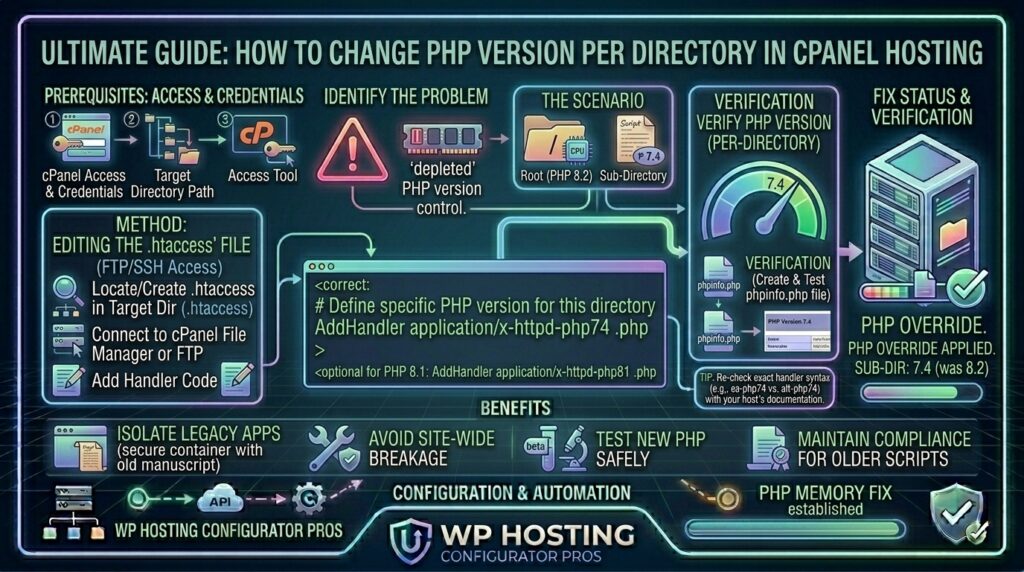
If you need two different directories under the same domain to run different PHP versions (e.g., [thehostreviews.com/](https://thehostreviews.com/) running PHP 8.3 and [thehostreviews.com/legacy-app/](https://thehostreviews.com/legacy-app/) running PHP 7.4), you must configure custom PHP handlers inside the subdirectory’s .htaccess file.
- Access File Manager: In cPanel, open the File Manager and navigate to your target subdirectory (e.g.,
/public_html/legacy-app/). - Create or Edit
.htaccess: Ensure hidden files are visible. Open or create a.htaccessfile inside that specific subdirectory. - Add the PHP Handler Directive: Depending on your hosting provider’s server configuration (PHP-FPM vs. CGI/SuPHP), add the appropriate handler code.
Example for servers using CGI / FastCGI (Common on CloudLinux cPanel hosts):
Apache
# Force PHP 7.4 for this specific directory and its subdirectories
<FilesMatch "\.(php4|php5|php|phtml)$">
    SetHandler application/x-httpd-alt-php74
</FilesMatch>
Example for newer EA-PHP (Enterprise Application PHP) handlers:
Apache
<FilesMatch \.php$>
    SetHandler application/x-httpd-ea-php74
</FilesMatch>
(Note: Handler names vary depending on your host. You can check your server’s active handlers by viewing the master .htaccess or checking phpinfo).
- Save the File: Save your changes and test the directory by visiting
[thehostreviews.com/legacy-app/info.php](https://thehostreviews.com/legacy-app/info.php)(containing<?php phpinfo(); ?>) to verify that the active PHP version has changed successfully.
Method 3: Using CloudLinux “Select PHP Version” Selector
If your host runs CloudLinux (which powers the vast majority of professional cPanel hosting environments):
- In cPanel, navigate to the Software section and click on Select PHP Version.
- At the top of the Selector interface, you will see your current PHP version and a dropdown menu.
- Select your desired PHP version for the root account.
- Switch to the Extensions tab to enable specific modules (like
bcmath,imagick, ormysqli) required by scripts in that directory. - Click Set as current.
Part 3: Verifying Your Per-Directory PHP Version
Never assume a configuration change worked without verification. Always test your per-directory setup using one of the following methods:
Method 1: The phpinfo() Test Script
- Create a file named
test-version.phpinside your specific subdirectory (e.g.,/public_html/legacy-app/test-version.php). - Paste the following snippet into the file:PHP
<?php phpinfo(); - Open your web browser and navigate to
[https://thehostreviews.com/legacy-app/test-version.php](https://thehostreviews.com/legacy-app/test-version.php). - Look at the PHP Version field at the very top of the rendered page. Ensure it matches your intended version (e.g.,
7.4.33). - Security Warning: Delete the
test-version.phpfile immediately after verification to prevent exposing sensitive server configuration data to malicious actors.
Method 2: Checking via SSH Command Line
If you have SSH access to your hosting account or VPS, you can verify which PHP binary is executing in a specific directory:
Bash
cd /home/username/public_html/legacy-app/
php -v
Part 4: Best Practices for Managing Multi-PHP Environments
- Isolate Legacy Applications: Avoid mixing multiple disparate PHP applications in deep subdirectories under a single domain whenever possible. Whenever security permits, migrate legacy apps to isolated subdomains (
app.thehostreviews.com) for cleaner server management. - Keep PHP Versions Updated: Never run End-of-Life (EOL) PHP versions (like PHP 5.6, 7.0, 7.1, 7.2, or 7.3) on public-facing directories unless strictly necessary, as they no longer receive critical security patches and expose your server to vulnerabilities.
- Match PHP Extensions: When changing PHP versions per directory, ensure that required PHP extensions (such as
gd,curl,mbstring, andopenssl) are enabled for that specific version in your MultiPHP Selector. Missing extensions will cause fatal application errors.
Part 5: Frequently Asked Questions (FAQ)
1. Can I run two different PHP versions on the same cPanel hosting account?
Yes. Modern cPanel hosting environments running CloudLinux or MultiPHP managers allow you to assign different PHP versions to different domains, subdomains, or subdirectories.
2. How do I change the PHP version for a specific subdirectory in cPanel?
You can change a subdirectory’s PHP version by adding custom PHP handler directives (such as SetHandler application/x-httpd-alt-phpXX) inside a .htaccess file placed directly inside that subdirectory.
3. What happens if I use an unsupported PHP version handler in .htaccess?
If you enter an incorrect or unsupported PHP handler string in your .htaccess file, your website will immediately throw a 500 Internal Server Error. Check your server error logs and remove or correct the handler string to restore access.
4. Does changing the PHP version affect my database or files?
No. Changing your PHP version only switches the software interpreter that processes your PHP code. It does not alter your MySQL databases, file permissions, or uploaded media files.
5. Why is my MultiPHP Manager option missing in cPanel?
If the MultiPHP Manager icon is missing, your hosting provider has restricted access to it based on your hosting tier (common on cheap, restrictive shared hosting plans). You will need to contact your host’s support to change PHP versions.
6. Do I need to restart Apache after changing PHP versions?
No. When you change PHP versions via cPanel’s MultiPHP Manager or .htaccess handlers, the server applies the configuration changes dynamically without requiring a manual web server restart.
7. How do I enable PHP extensions for an older PHP version?
You can enable or disable specific PHP extensions (like ionCube Loader, imagick, or zip) by navigating to Select PHP Version in cPanel, selecting your target PHP version from the dropdown, and checking the boxes next to the required modules.
8. Is it safe to run outdated PHP versions like PHP 7.4?
Running EOL PHP versions is strongly discouraged because they no longer receive security updates. If you must run legacy code, ensure your directory is protected by robust file permissions, password protection, or a Web Application Firewall (WAF).
9. Can WordPress run on multiple PHP versions simultaneously?
Yes, if you host separate WordPress installations in different subdirectories or subdomains on the same cPanel account, each can run its own independent PHP version.
10. How do I check which PHP version my server is currently running?
You can check your active PHP version by creating a temporary phpinfo.php file, checking your cPanel dashboard overview sidebar, or running php -v via SSH terminal access.
Conclusion
Managing multiple PHP versions across directories and subdomains in cPanel hosting is an essential skill for developers and system administrators. By mastering cPanel’s MultiPHP Manager, understanding .htaccess handler mappings, and utilizing CloudLinux selectors, you can effortlessly host modern applications and legacy scripts side-by-side on a single server.