When launching a new digital project or scaling an existing brand for target audiences across major technology and business capitals like Texas, New York, California, Washington, and San Francisco, keeping operational costs low is a priority. For startups, local businesses, and independent creators, shared web hosting remains the most popular entry point.
However, shared hosting comes with a trade-off: you are sharing CPU, RAM, and disk input/output (I/O) limits with dozens or hundreds of other websites on the same physical machine. When a “noisy neighbor” experiences a traffic surge or runs unoptimized code, your own website can slow to a crawl.
A slow-loading website kills conversion rates and damages your search engine visibility. This comprehensive, expert-level guide explores proven, actionable strategies to speed up slow shared web hosting servers, optimize your application stack, and secure top-tier performance for maximum Google search rankings.
Understanding Why Shared Web Hosting Slows Down
Before implementing fixes, it is crucial to understand the architectural bottlenecks inherent in shared hosting environments.
Unlike Virtual Private Servers (VPS) or dedicated cloud instances where resources are strictly isolated, shared hosting pools resources. Common culprits behind slow shared server response times (Time to First Byte, or TTFB) include:
- Resource Contention: Heavy database queries or traffic spikes on neighboring websites consume available CPU cycles, starving your site of processing power.
- Outdated Server Software: Running older versions of PHP (such as PHP 7.4 or earlier) or unoptimized MySQL databases dramatically increases execution time.
- Uncached Dynamic Content: Forcing the server to dynamically generate every single page request from scratch instead of serving static cached copies destroys server efficiency.
- Inode and Storage Limits: Piling thousands of small files (like unoptimized image caches or bloated media libraries) onto standard mechanical or slow SSD hard drives creates intense disk I/O bottlenecks.
Step-by-Step Strategies to Supercharge Slow Shared Hosting
You don’t need an expensive enterprise server upgrade to achieve lightning-fast load times. Apply these multi-layered optimization techniques directly through your control panel (such as cPanel or hPanel).
1. Upgrade to the Latest PHP Version Immediately
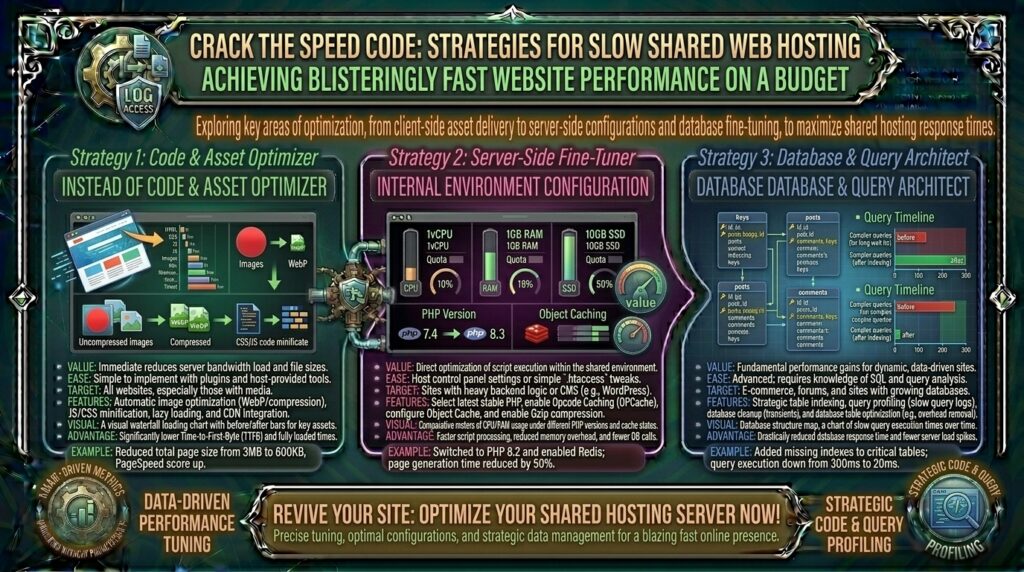
PHP performance has advanced dramatically in recent years. Modern PHP versions (PHP 8.2, 8.3, and newer) include Just-In-Time (JIT) compilation and deep memory optimizations that execute code significantly faster than legacy versions.
- How to fix it: Log into your hosting control panel, locate the Select PHP Version or MultiPHP Manager tool, and upgrade your site to the newest stable PHP release. Monitor your site for compatibility errors after upgrading.
2. Enable OpCache for Server-Side Script Acceleration
By default, PHP must read, compile, and execute script files every single time a user requests a page. OpCache stores precompiled script bytecode in shared memory, eliminating the overhead of parsing scripts on every hit and slashing server response times.
- How to fix it: Inside your PHP configuration manager (
php.ini), ensureopcache.enable = 1is turned on and allocate sufficient memory (e.g., 128MB).
3. Implement Robust Page Caching (LiteSpeed Cache / Redis)
If your host utilizes LiteSpeed web servers (common with budget leaders like Hostinger), you have access to server-level caching plugins like LiteSpeed Cache (LSCache). Unlike standard WordPress plugins that run through PHP, LSCache communicates directly with the server architecture to serve static HTML pages almost instantaneously.
- How to fix it: Install the official LSCache plugin, enable object caching via Redis or Memcached if supported by your host, and configure smart page purges.
4. Optimize Database Tables and Reduce Bloat
Over time, content management systems accumulate database bloat: post revisions, trashed comments, transient options, and orphaned plugin metadata. Heavy database queries stall shared server CPU cores.
- How to fix it: Use database optimization tools (like WP-Optimize or phpMyAdmin) to clean tables, run
OPTIMIZE TABLEqueries regularly, and limit automatic post revisions in your configuration file.
Pro-Tips: Advanced Technical Tweaks for Shared Environments
To squeeze maximum performance out of budget shared hosting tiers, implement these advanced adjustments:
1. Leverage a Global Content Delivery Network (CDN)
Offload geographical latency by integrating a free or low-cost CDN like Cloudflare. A CDN caches your static assets (images, CSS, JavaScript) across edge servers located near your users—whether they are browsing from San Francisco, New York, or overseas. This shields your shared hosting origin server from handling redundant requests.
2. Compress and Modernize Media Assets
Heavy images are the number one cause of slow page rendering. Convert traditional PNG and JPEG files into next-gen formats like WebP or AVIF, which offer superior compression without visual quality loss. Ensure proper lazy loading is enabled so off-screen images don’t block initial page rendering.
3. Conduct a Ruthless Plugin and Theme Audit
Every active plugin adds background script execution hooks and database queries. On shared hosting, a bloated multi-purpose theme or a poorly coded plugin can add seconds to your TTFB. Audit your extensions, remove redundant plugins, and rely on lightweight, standards-compliant design frameworks.
Frequently Asked Questions (FAQ)
1. Why is my shared web hosting running so slowly?
Slow shared hosting is typically caused by resource contention (noisy neighbors utilizing shared CPU/RAM), unoptimized PHP configurations, lack of page caching, or bloated database queries.
2. What is TTFB and why does it matter for speed?
TTFB stands for Time to First Byte. It measures the time it takes for a user’s browser to receive the first byte of data from your web server. A high TTFB indicates a slow server response and hurts Google SEO rankings.
3. Does upgrading my PHP version actually speed up my site?
Yes. Upgrading from older PHP versions to modern releases (PHP 8.2 or 8.3) provides substantial performance gains, executing code with lower memory consumption and faster execution times.
4. What is the difference between shared hosting and VPS speed?
Shared hosting pools resources across many users on one server, leading to potential slowdowns during traffic spikes. A Virtual Private Server (VPS) dedicates isolated CPU and RAM resources exclusively to your site, ensuring consistent speed.
5. How can I check if my host uses LiteSpeed servers?
You can check your server headers using online inspection tools or browser developer tools, or look for LiteSpeed-specific features inside your hosting control panel. LiteSpeed natively supports high-performance caching.
6. Can a caching plugin fix a slow shared hosting server?
Yes, caching plugins (like LiteSpeed Cache or WP Rocket) generate static HTML versions of your dynamic pages, preventing your server from running heavy PHP scripts and database queries on every visit.
7. Does server location affect website speed?
Yes. If your physical target audience is located in the United States (such as Texas or New York), hosting your website on a server physically located in a US data center minimizes network latency.
8. How do database queries impact shared hosting performance?
Complex or unoptimized database queries force the server CPU to work harder. If too many queries run concurrently, your account may hit resource limits and experience artificial throttling.
9. What is OpCache and how do I enable it?
OpCache is a PHP caching engine that stores precompiled script bytecode in memory. You can easily enable it through your hosting control panel’s PHP configuration options.
10. When should I upgrade from shared hosting to a VPS?
If you have optimized your code, enabled caching, compressed your media, and still experience persistent server lag, traffic spikes, or resource limit errors, it is time to upgrade to a cloud or VPS plan.
Conclusion
A slow shared web hosting server does not mean you are trapped with poor performance. By systematically upgrading your PHP environment, activating server-level caching, optimizing your database, and leveraging a global CDN, you can dramatically accelerate your page load times on a budget. Implementing these expert-grade strategies ensures your digital platform remains lightning-fast, highly responsive, and fully optimized to secure top-tier visibility in Google search results.