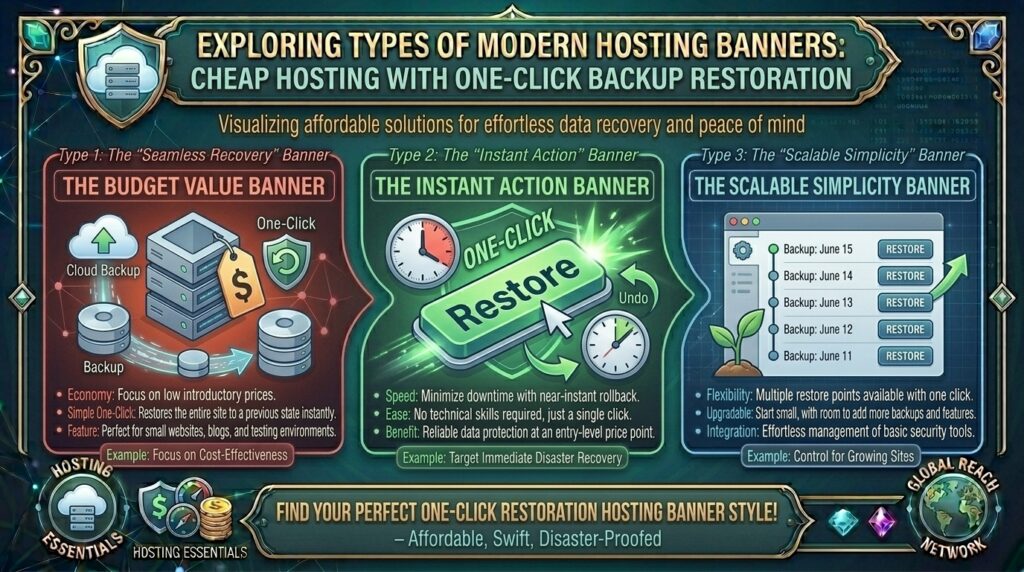
Whether you are launching a fast-growing e-commerce shop in New York, scaling a high-traffic media site in San Francisco, managing client portfolios in Texas, operating a tech startup in Washington, or testing agile web applications in California, website disaster can strike when you least expect it.
A stray line of faulty code, a corrupted database query after a plugin update, or an accidental file deletion can take your business offline in a matter of seconds. Historically, recovering a broken website required grueling technical effort: manually unpacking .tar.gz compressed archives via FTP, executing raw SQL commands through phpMyAdmin, and debugging broken file permissions via command-line terminals. For non-technical entrepreneurs and busy creators, this meant hours of stressful downtime.
Today, the web hosting landscape has transformed. Leading budget hosting providers now bundle robust data safety tools featuring one-click backup restoration directly inside beginner-friendly control panels, starting at just a few dollars a month.
In this comprehensive guide, we explore how budget backup-and-restore frameworks operate, evaluate the top cost-effective hosting providers, outline a step-by-step restoration workflow, and explain how reliable disaster recovery protects your long-term Google SEO visibility.
Understanding Automated Backups vs. One-Click Restoration Systems
Before selecting a cheap hosting provider, it helps to understand how modern backup infrastructure differs from legacy archiving practices.
+-------------------------------------------------------------+
|            The One-Click Restoration Architecture           |
+-------------------------------------------------------------+
|  [Hosting Control Panel (hPanel / cPanel / Site Tools)]     |
|          │                                                  |
|          ▼ (User Clicks "Restore Backup")                   |
|  [Automated Snapshot Engine]                                |
|    ├── Step 1: Restores /public_html/ source files          |
|    ├── Step 2: Rolls back MySQL database tables (.sql)      |
|    └── Step 3: Synchronizes SSL & mail server configurations|
|          │                                                  |
|          ▼                                                  |
|  [Website Live & Fully Restored in Under 60 Seconds]        |
+-------------------------------------------------------------+
- Automated Daily/Weekly Snapshots: Instead of requiring you to manually download zip archives, the host’s server infrastructure automatically takes snapshot copies of your website files and databases behind the scenes on a scheduled loop.
- Granular File vs. Full Account Restoration: Premium one-click systems allow you to choose whether you want to roll back the entire website directory or selectively restore a single overridden file or corrupted database table.
- Zero Downtime Stress: With intuitive dashboard triggers, initiating a restore requires nothing more than selecting a calendar date from a drop-down menu and clicking a single button.
Top Cheap Web Hosts Offering One-Click Backup Restoration
Review how leading cost-effective hosting platforms compare when delivering automated daily backups, intuitive restoration dashboards, and budget-friendly pricing structures:
| Hosting Provider | Starting Promo Price | Backup Frequency | Restoration Complexity | Best Suited For |
| Hostinger | ~$2.69 / mo | Daily / Weekly Snapshots | 1-Click via hPanel | Fast, beginner-friendly WordPress & custom sites |
| Bluehost | ~$1.99 / mo | Automated Daily Backups | 1-Click via Dashboard | New WordPress blogs & small businesses |
| HostArmada | ~$1.99 / mo | Daily Backups (7-30 days retention) | 1-Click via cPanel/Stellar | Fast cloud-backed shared hosting |
| GreenGeeks | ~$2.95 / mo | Real-time / Nightly Backups | 1-Click via Account Panel | Eco-conscious developers & small web stores |
In-Depth Analysis: Best Low-Cost Hosts for Easy Restores
1. Hostinger: Best Overall Value with Streamlined One-Click Recovery
Hostinger pairs ultra-low introductory pricing with its custom-built hPanel interface, widely recognized as one of the most intuitive control panels in the hosting industry.
- The Backup Mechanism: Hostinger creates automated weekly (or daily, depending on your tier) backups of your entire web directory and databases.
- The Restoration Experience: Inside hPanel, navigating to the Files > Backup section presents a clear calendar view. You simply select the exact date you wish to revert to, choose whether to restore files or databases, and click Restore. The system executes the rollback safely in the background.
2. Bluehost: Best Entry-Level Platform for Seamless WordPress Recovery
Bluehost powers millions of websites globally and integrates deep automated safety measures directly into its user management console.
- The Backup Mechanism: Bluehost captures automated daily backups of your website core files, themes, plugins, and MySQL databases without requiring manual configuration.
- The Restoration Experience: Restoring your site requires zero multi-page navigation. You simply access the Backups tab in your dashboard, pick your preferred restore point, and authorize the system to push your site back to a healthy state instantly.
SEO Impact: How Fast Backup Restoration Protects Google Rankings
Website downtime and content corruption are catastrophic for search engine optimization. One-click backup restoration directly safeguards your Google search performance:
- Minimizing Unscheduled Downtime: If your site breaks and returns a
500 Internal Server Error, Googlebot crawlers will record failed fetch requests. Extended downtime causes search engines to de-index pages or lower your keyword rankings. One-click recovery brings your site back online in seconds, minimizing crawler errors. - Neutralizing Malware and Defacements: If malicious scripts inject spam links or alter your meta tags, a swift rollback to a clean pre-infection backup purges the threat instantly before Google flags your domain as deceptive or dangerous.
- Preserving Core Web Vitals: Botched CSS/JS updates can break mobile responsiveness and layout stability (Cumulative Layout Shift). Instantly reverting to a stable backup protects your user experience metrics.
Pros and Cons of Budget Hosting with One-Click Backups
The Pros 👍
- Zero Technical Friction: Eliminates the need for command-line knowledge, FTP clients, or manual SQL file imports during emergencies.
- Drastically Reduced Stress: Provides complete confidence when testing new themes, updating plugins, or modifying core code files.
- Cost Efficiency: Securing automated daily safety nets for under $3 a month delivers enterprise-grade peace of mind on a bootstrap budget.
The Cons 👎
- Retention Window Limits: Entry-level shared plans typically retain backups for 7 to 30 days. If your site was corrupted months ago and you didn’t notice, the backup may no longer exist.
- Granular Limits on Shared Tiers: Very large websites exceeding server inode limits can occasionally experience timeout errors during massive bulk restorations on shared nodes.
Step-by-Step Guide: Restoring a Website Using Hostinger’s hPanel
Executing a one-click backup restoration on a budget hosting account follows a streamlined, foolproof workflow:
- Log Into Your Hosting Dashboard: Navigate to your host’s client portal (such as Hostinger’s hPanel) and log in using your secure credentials.
- Locate the Backup Section: In the dashboard search bar or file management menu, look for Files and click on Backups.
- Select the Backup Type: Choose between Files backups (for source code, media, and themes) or Database backups (for MySQL tables and user data).
- Choose Your Target Date: Browse the available calendar snapshots. Select the clean date prior to when the error, malware infection, or broken update occurred.
- Initiate the Restore: Click Restore, confirm your selection, and allow the automated system to process the rollback. A success notification will appear once your site is fully operational again.
10 Essential Tips to Optimize Cheap Backup Restoration Hosting
- Perform Manual Backups Before Major Updates: Even with automated daily backups, always take a manual snapshot right before updating major plugins, themes, or core PHP versions.
- Verify Backup Retention Windows: Check whether your cheap hosting plan stores backups for 7 days, 14 days, or 30 days, and adjust your monitoring habits accordingly.
- Download Local Copies Periodically: For critical business projects, download a fresh archive copy of your backup to your local computer or external drive once a month.
- Test Your Restoration Process Early: Do not wait for a live emergency to test your host’s restore feature; familiarize yourself with the buttons and menus ahead of time.
- Keep Database Names Synchronized: If you restore a database manually, ensure your
wp-config.phpor configuration files match the active database username and password strings. - Exclusion of Junk Cache Files: Ensure your backup settings exclude heavy cache files and server error logs to prevent backup bloat and speed up recovery times.
- Enable Two-Factor Authentication (2FA): Secure your hosting dashboard login with 2FA so malicious actors cannot compromise your backup restoration controls.
- Monitor Inode and Storage Limits: Ensure your backup archives do not exhaust your hosting account’s overall disk space allocations.
- Combine with Staging Environments: Whenever possible, test risky code changes on a staging clone before pushing updates to your live production server.
- Check Email and SSL Integrity: After completing a full account restoration, verify that your SSL certificates and email routing configurations are functioning smoothly.
Frequently Asked Questions (FAQ)
1. What is one-click backup restoration?
One-click backup restoration is a hosting feature that allows you to roll your website files and databases back to a previously saved, healthy state instantly via your control panel with a single button click.
2. Is backup restoration included free with cheap web hosting?
Many reputable budget hosts (like Hostinger and Bluehost) include automated daily or weekly backups and simple restoration tools free of charge within their core subscription plans.
3. Will restoring a backup delete recent changes made to my site?
Yes. When you restore a backup from a specific past date, any content, posts, or user registrations added after that date will be overwritten and removed.
4. How long does a one-click website restoration take?
For most standard blogs and small business websites, a full restore completes in under 2 to 5 minutes, depending on the file size and server load.
5. Do I need coding skills to use a one-click restore tool?
No. One-click restoration tools are designed specifically for beginners, utilizing graphical calendar pickers and simple buttons that require zero technical expertise.
6. What should I do if my website breaks immediately after an update?
Log into your hosting control panel, navigate to the backup section, select yesterday’s snapshot date, and click “Restore” to revert your site to working order instantly.
7. Can I restore just a single file instead of the whole website?
Yes. Advanced backup managers allow you to browse specific directories, download or restore individual files, or recover specific database tables without rolling back everything.
8. How far back do cheap hosting providers keep backups?
Most budget shared hosting plans retain backups for the last 7 to 30 days. If you require longer historical archives, you may need an extended cloud backup add-on.
9. Will restoring a backup remove a malware infection?
Yes, provided you select a backup date taken before the malware infection occurred. However, you should also update your passwords and plugins immediately afterward to patch the vulnerability.
10. Which budget host offers the easiest backup restoration experience overall?
Hostinger and Bluehost stand out as top choices, offering streamlined, beginner-friendly dashboards that allow you to restore your website files and databases with minimal clicks.
Conclusion
Investing in cheap web hosting with one-click backup restoration is the single most effective way to protect your digital investment without overpaying for enterprise infrastructure. By leveraging cost-effective providers like Hostinger and Bluehost, you secure a reliable safety net that eliminates technical friction during website emergencies.