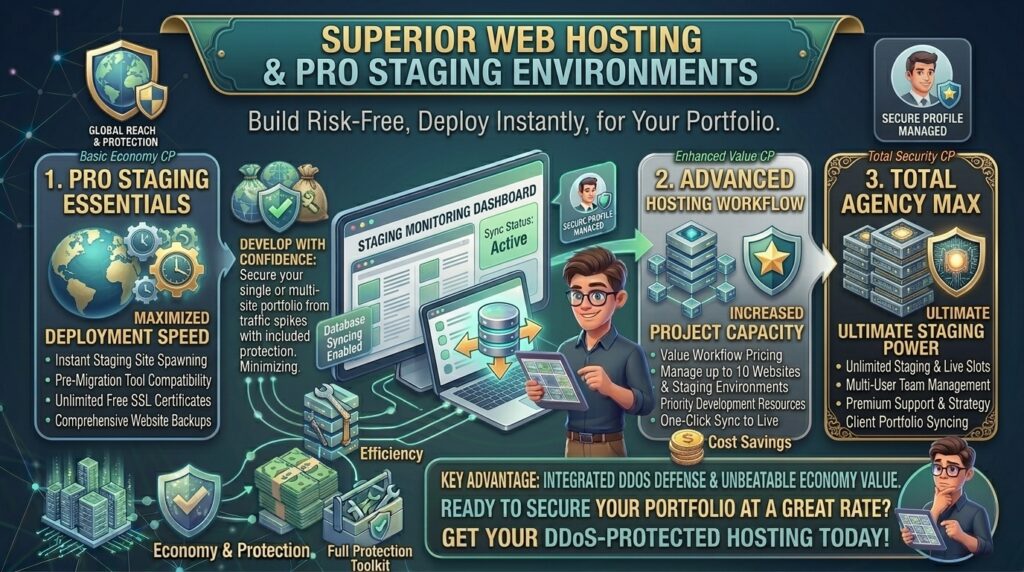
Low Cost Web Hosting with Staging Site Creation Tools: The Ultimate Development Guide
Introduction: Why Every Webmaster Needs a Staging Environment
Whether you are designing e-commerce templates in New York, tweaking custom JavaScript code for a tech startup in San Francisco, building digital storefronts in Texas, maintaining media networks in Washington, or launching creative portfolios in California, making direct edits on a live website is a recipe for disaster.
Every seasoned web developer or business owner has experienced the sinking feeling of pushing a faulty plugin update or broken script to a production site, resulting in the dreaded white screen of death, broken database tables, and plunging conversion rates.
Historically, setting up a safe replica of your website to test updates required setting up complex local developer environments (like LocalWP or XAMPP) or paying exorbitant enterprise fees for managed WordPress hosting. Today, intense competition in the web hosting space has changed the game. You can now easily find low cost web hosting with staging site creation tools included right out of the box.
In this comprehensive guide, we explore how staging environments work, review top budget-friendly web hosts offering native 1-click staging, highlight key workflow tips, and show you how a safe development pipeline protects your long-term Google SEO performance.
What is a Staging Site and How Does It Work?
A staging site is an exact, isolated clone of your live website hosted on a private, password-protected subdomain (e.g., staging.yourdomain.com). It allows you to experiment freely without affecting your real visitors or search engine crawlers.
+-------------------------------------------------------------+
|                The Modern Web Staging Pipeline              |
+-------------------------------------------------------------+
|  [Live Production Site] (Publicly Accessible)               |
|          ▲                                                  |
|          │  (Push Changes Live with 1-Click)                |
|          ▼                                                  |
|  [Staging Clone Environment] (Private & Password Protected)  |
|          │                                                  |
|          └──> Test Theme Updates                            |
|          └──> Test Plugin Upgrades                          |
|          └──> Experiment with Code & CSS                    |
+-------------------------------------------------------------+
The 3-Step Staging Workflow
- Clone (Create): With a single click inside your hosting dashboard, you duplicate your live site into a hidden staging directory.
- Experiment (Test): Update plugins, change themes, test PHP upgrades, or edit CSS code on the staging copy. If something breaks, your live site remains completely untouched.
- Push (Deploy): Once you verify that everything runs smoothly, you use the host’s deployment tool to push the staging updates back to your live production site instantly.
Top Low-Cost Web Hosting Providers with Staging Tools
Review how budget hosting options compare when looking for built-in 1-click staging functionality:
| Hosting Provider | Starting Promo Price | Staging Environment Feature | Control Panel | Ideal Use Case |
| Hostinger | ~$2.99 / mo | Native 1-Click Staging Tool | hPanel | Fast performance & modern workflows |
| HostArmada | ~$1.99 / mo | Softaculous Staging / cPanel Tools | cPanel | Cloud-backed shared hosting |
| Bluehost | ~$1.99 / mo | Built-in WordPress Staging | Custom Dashboard | Beginner-friendly site management |
| GreenGeeks | ~$2.95 / mo | Softaculous Staging Integration | cPanel | Eco-friendly high speed hosting |
In-Depth Analysis: Best Budget Hosts for Staging Environments
1. Hostinger: Best Value with Modern hPanel Integration
Hostinger has rapidly become a favorite for web professionals due to its custom-built hPanel, which is clean, fast, and feature-rich.
- Staging Implementation: Within Hostinger’s WordPress management tab, you can create a staging site with a single click. Once you make changes on the staging backend, pushing updates back to production is handled seamlessly.
- Performance: Powered by LiteSpeed caching and NVMe storage, your staging environment runs just as fast as your live site.
2. Bluehost: Streamlined Beginner Workflow
Bluehost includes straightforward staging tools embedded directly into its user interface, making it simple for non-technical users to test updates safely.
- Staging Implementation: You can clone your production database and files with a single toggle switch, run updates, and review changes prior to publishing.
SEO Impact: How Staging Sites Protect Your Google Rankings
Your choice of a hosting workflow has a direct impact on your search engine optimization results:
- Preventing 503 Downtime Errors: Pushing broken code directly to a live site can cause fatal PHP errors or infinite redirect loops. If Googlebot attempts to crawl your site during these outages, it records crawl errors, which can eventually lead to drops in search indexation.
- Preserving Core Web Vitals: Testing heavy plugins or bloated visual builders on a staging site first ensures you don’t accidentally deploy code that spikes your Time to First Byte (TTFB) or ruins your Largest Contentful Paint (LCP) scores.
- Blocking Search Engine Indexation of Staging URLs: Quality hosting staging tools automatically apply password protection and
noindexmeta tags to your staging subdomain, ensuring Google never accidentally indexes your unfinished draft site alongside your live content.
Pros and Cons of Budget Hosting with Staging Tools
The Pros 👍
- Risk-Free Experimentation: Test radical theme redesigns, major database migrations, and risky core updates without risking live revenue.
- Massive Time Savings: Avoid the tedious manual process of downloading files via FTP, exporting SQL databases, and setting up local test environments.
- Professional Quality Control: Deliver a polished, bug-free experience to your clients or customers every single time.
The Cons 👎
- Database Overwrite Conflicts: If customers make ecommerce purchases or leave comments on your live site while you are testing updates on staging, pushing changes can overwrite those live database entries if you aren’t careful.
- Inodes and Storage Consumption: Staging environments create duplicate file folders and database tables, consuming twice as much storage space on your hosting account.
Step-by-Step Guide: How to Create and Push a Staging Site
Using a low-cost host with native staging tools generally follows a standard, repeatable process:
- Access Your Hosting Dashboard: Log into your account panel (such as Hostinger’s hPanel or cPanel) and navigate to your website management options.
- Launch the Staging Tool: Locate the Staging or Clone utility under your WordPress settings.
- Generate the Clone: Click Create Staging Site. The server will automatically copy your files and database to a secure subdomain (e.g.,
staging.yourwebsite.com). - Make Your Updates: Log into your staging WordPress dashboard, install your new plugins, apply theme updates, or tweak code safely.
- Review and Push Live: Once verified, return to your hosting dashboard and click Push to Live to merge your staging updates onto your production domain.
10 Essential Tips for Staging Site Success
- Check Storage Limits: Ensure your cheap hosting plan has enough SSD/NVMe disk space to accommodate both your live site and the staging duplicate.
- Lock Down Staging URLs: Always verify that your staging subdomain is password-protected so external web users cannot stumble upon draft content.
- Freeze Live E-Commerce Transactions: If running an online store, put your site in maintenance mode or halt transactions before pushing major database changes from staging.
- Test PHP Version Upgrades: Use your staging environment first when upgrading your server’s PHP version (e.g., moving from PHP 8.1 to 8.3) to catch deprecated code errors safely.
- Purge Caches After Pushing: Once you push changes live, clear your server cache and CDN (like Cloudflare) to ensure visitors see the updated version immediately.
- Back Up Before You Push: Always run a fresh manual backup of your live production site right before clicking the final “Push to Live” button.
- Verify Responsive Layouts: Use your staging period to test mobile and tablet responsiveness across various devices before releasing changes to the public.
- Delete Old Staging Files: Once a project update is complete, delete the staging clone to free up valuable server inodes and disk space.
- Keep Staging Plugins Synced: Avoid testing updates on staging if your live site has accumulated entirely different plugin versions or database states.
- Choose Hosts with Reliable Deployment Logs: Select providers that log staging actions so you can track what files were modified during a push.
Frequently Asked Questions (FAQ)
1. What is a website staging tool?
A staging tool is a hosting feature that allows you to create an exact, hidden clone of your live website where you can safely test updates, plugins, and design changes without breaking your public site.
2. Can I get 1-click staging on cheap shared hosting plans?
Yes. Modern budget web hosts like Hostinger and Bluehost include native 1-click staging environments directly within their low-cost entry-level plans.
3. Will a staging site cost me extra money?
No. With providers that support native staging, creating and maintaining a staging clone is completely free and included within your standard monthly hosting subscription.
4. Can Google index my staging website?
Not if your host’s staging tool is configured correctly. Staging subdomains are typically password-protected and automatically tagged with noindex directives to keep search engine bots away.
5. What happens to live orders or comments when I push a staging site?
Pushing a staging site usually overwrites the live database. If users make purchases or register accounts on your live site while you are testing on staging, those live updates can be lost unless you perform a selective file-only push.
6. Do I need technical coding skills to use a hosting staging tool?
No. Native staging tools designed by hosts like Hostinger or Bluehost utilize simple 1-click buttons that handle file copying and database duplication automatically.
7. How much disk space do I need for a staging site?
Because a staging site duplicates your primary website, you will need roughly double the storage space that your current live site occupies on the server.
8. Can I test e-commerce checkout systems on a staging site?
Yes. Staging environments are ideal for testing WooCommerce gateways, shopping cart flows, and payment scripts safely in sandbox mode.
9. What is the difference between local hosting (LocalWP) and hosting staging?
Local hosting runs a test site directly on your personal computer hardware, whereas hosting staging runs your test clone on your actual web host’s server infrastructure, providing an identical server environment.
10. Which cheap web host offers the best overall staging experience?
Hostinger stands out as a top recommendation, combining exceptionally low entry pricing with a fast, modern hPanel interface and smooth 1-click staging workflows.
Conclusion
Investing in low cost web hosting with staging site creation tools eliminates the guesswork, stress, and downtime traditionally associated with managing digital properties. By utilizing budget-friendly hosts that offer native 1-click staging environments, you can test updates, rewrite code, and overhaul designs in a secure sandbox before pushing changes live.